

Vector vs Raster Images: Which File Should You Download and Why?
October 17, 2026
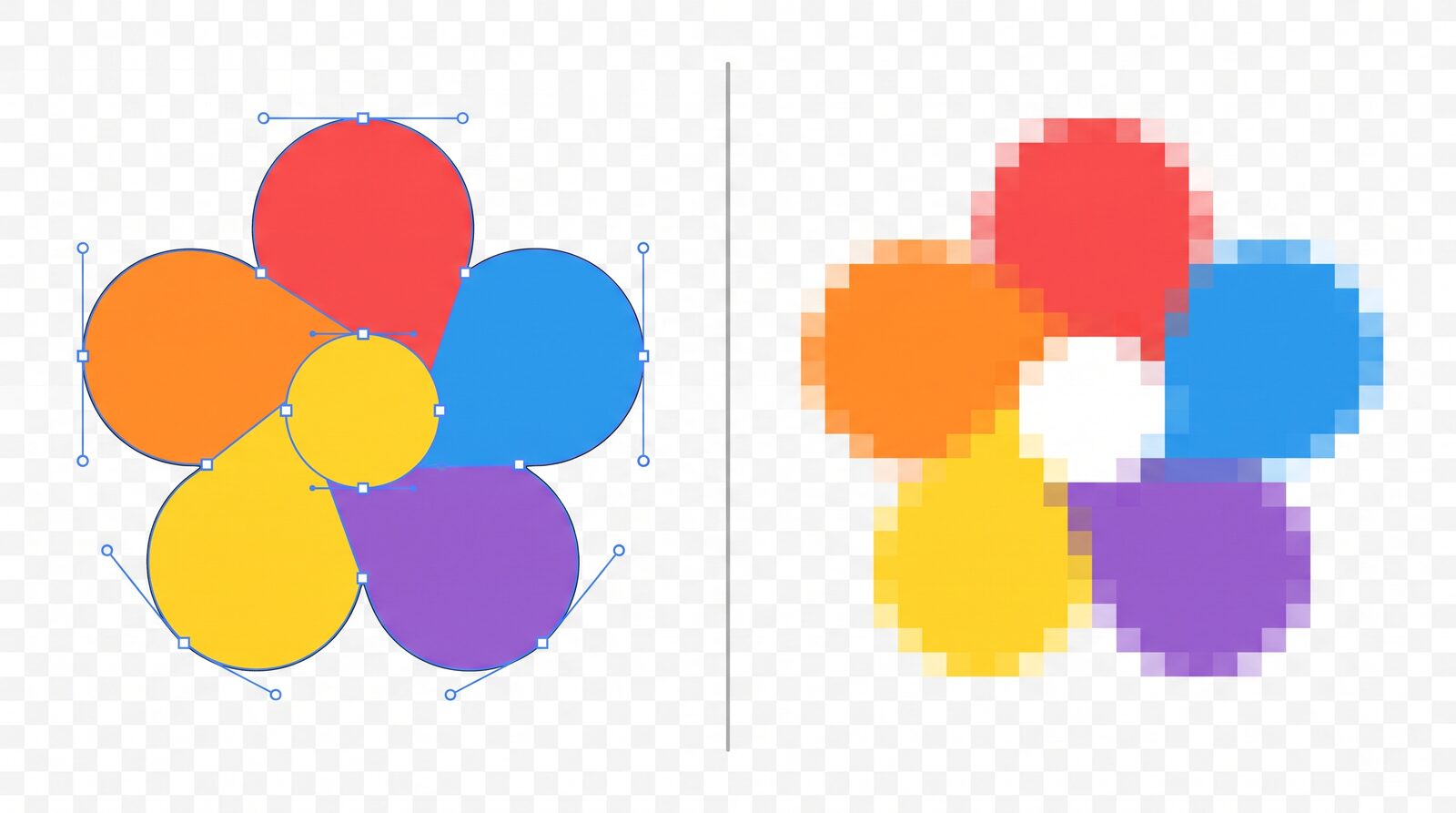
When you license a design from a stock site, you often get a choice of files: EPS, SVG, AI, PNG or JPG. Picking the wrong one can mean a blurry banner, a logo you cannot recolour or a website that loads slowly. Here is a simple guide to the two kinds of image files and when to use each.
What is a raster image?
A raster image is made of a grid of tiny coloured squares called pixels. Photos from your phone are raster images. Common raster formats are JPG, PNG and WebP.
- Strength: perfect for photos and detailed textures.
- Weakness: it has a fixed size. Enlarge it too much and it turns blurry or blocky.
What is a vector image?
A vector image is made of shapes described by maths: points, lines and curves. Common vector formats are SVG, EPS, AI and vector PDF.
- Strength: it can be scaled to any size, from a tiny icon to a building banner, and stays perfectly sharp. Colours and shapes are easy to edit.
- Weakness: not suited to realistic photos.
Quick comparison
| Vector (SVG, EPS, AI) | Raster (JPG, PNG, WebP) | |
|---|---|---|
| Made of | Shapes and curves | Pixels |
| Scaling | Unlimited, always sharp | Blurry when enlarged |
| Editing colours | Easy | Harder |
| Best for | Logos, icons, badges, lettering, illustrations | Photos, detailed textures, final social posts |
| Open with | Illustrator, Inkscape, Affinity Designer, Figma, CorelDRAW | Any image viewer, Photoshop, Canva |
Which file should you choose?
For logos and brand marks
Always keep a vector version. A logo has to work on a business card, a website and a shop sign. See these logo designs and business card designs.
For print (banners, flyers, certificates, packaging)
Use vector where possible. If you must use a raster file, check its size first: for good print quality you need about 300 pixels per inch at the final print size. The print size calculator tells you how big you can print an image.
For anniversary badges and award seals
Vectors are ideal because you can change the year, the colours or the company name easily. Browse anniversary badge designs.
For social media posts
Design in vector, then export a PNG or JPG at the exact platform size. PNG keeps text and flat colours crisp; JPG is smaller for photos.
For websites
Use SVG for icons and logos (tiny files, sharp on every screen) and compressed WebP or JPG for photos. The image compressor shrinks files in your browser.
Common file formats explained
- SVG: the web's vector format. Works in browsers, Figma and Canva.
- EPS: an older vector format still used by stock sites and printers. Open it in Illustrator, Affinity Designer or Inkscape.
- AI: Adobe Illustrator's own format.
- PDF: can hold vectors; printers often ask for it.
- PNG: raster with transparency; great for graphics on a clear background.
- JPG: raster without transparency; small files for photos.
- WebP: modern raster format with smaller files for websites.
Can you turn a raster image into a vector?
Tools like Illustrator's Image Trace can convert simple artwork, but results on photos or detailed images are usually messy. For logos and lettering it is better to start with a proper vector file.
Summary
Choose vector for anything that needs to scale or be edited: logos, badges, icons, lettering and print. Choose raster for photos and for the final exported image you post online. Most designs in this vector collection are made to be resized and recoloured without losing quality.